
The Best Email Signature Designs for 2026
Drafted with AI assistance and reviewed before publishing. How we write and source articles →
TL;DR: Search for “best email signature designs” and you’ll find galleries full of gradients, custom display fonts, and full-width banners — most of which collapse or distort the moment they’re opened in Outlook. This article covers five signature archetypes that are genuinely well-designed and survive real-world rendering, plus the specific mistakes that sink otherwise good designs. It’s a companion to Email Signature Branding, which covers the underlying design rules in depth.
Why most “best email signature” galleries are misleading
Search for design inspiration and you’ll find no shortage of galleries: signatures with soft gradient backgrounds, hand-lettered display fonts, full-bleed photography, and animated GIF banners. Many of them look genuinely good — in a browser, rendered by a modern web engine that supports CSS Grid, web fonts, and background images without complaint.
The problem is that almost none of your recipients will see them that way. As covered in Why Designing HTML Emails for Outlook Is Still a Nightmare in 2026, classic Outlook for Windows still renders HTML through a Word-derived engine that ignores flexbox and Grid entirely, strips most background images unless they’re built with VML workarounds, and collapses div-based layouts that aren’t built on tables. A signature designed by eye in a browser and never tested in actual Outlook is a signature that’s likely to arrive broken — missing the logo, with the layout collapsed into a single misaligned column, or with a banner that just doesn’t appear.
A genuinely good signature design in 2026 isn’t the one that looks best in a design tool. It’s the one that looks the same — correct logo, correct spacing, correct CTA — whether it’s opened in classic Outlook on Windows, the new Outlook, Outlook on Mac, Gmail’s web client, or the Outlook mobile app. That constraint doesn’t make good design impossible. It just rules out a lot of what shows up in generic “best of” roundups.
Five signature archetypes that actually work
These aren’t specific products or templates — they’re patterns that hold up across the constraints above, organised by who they suit and what job they’re doing.
1. The minimal executive
A single column: name, job title, company, one phone number, one email address, and — for a UK limited company — the registered details required under company law (see Email Signature Compliance for UK Businesses for exactly what that needs to include). No logo, or a small one. No banner. No social icons, or at most one or two.
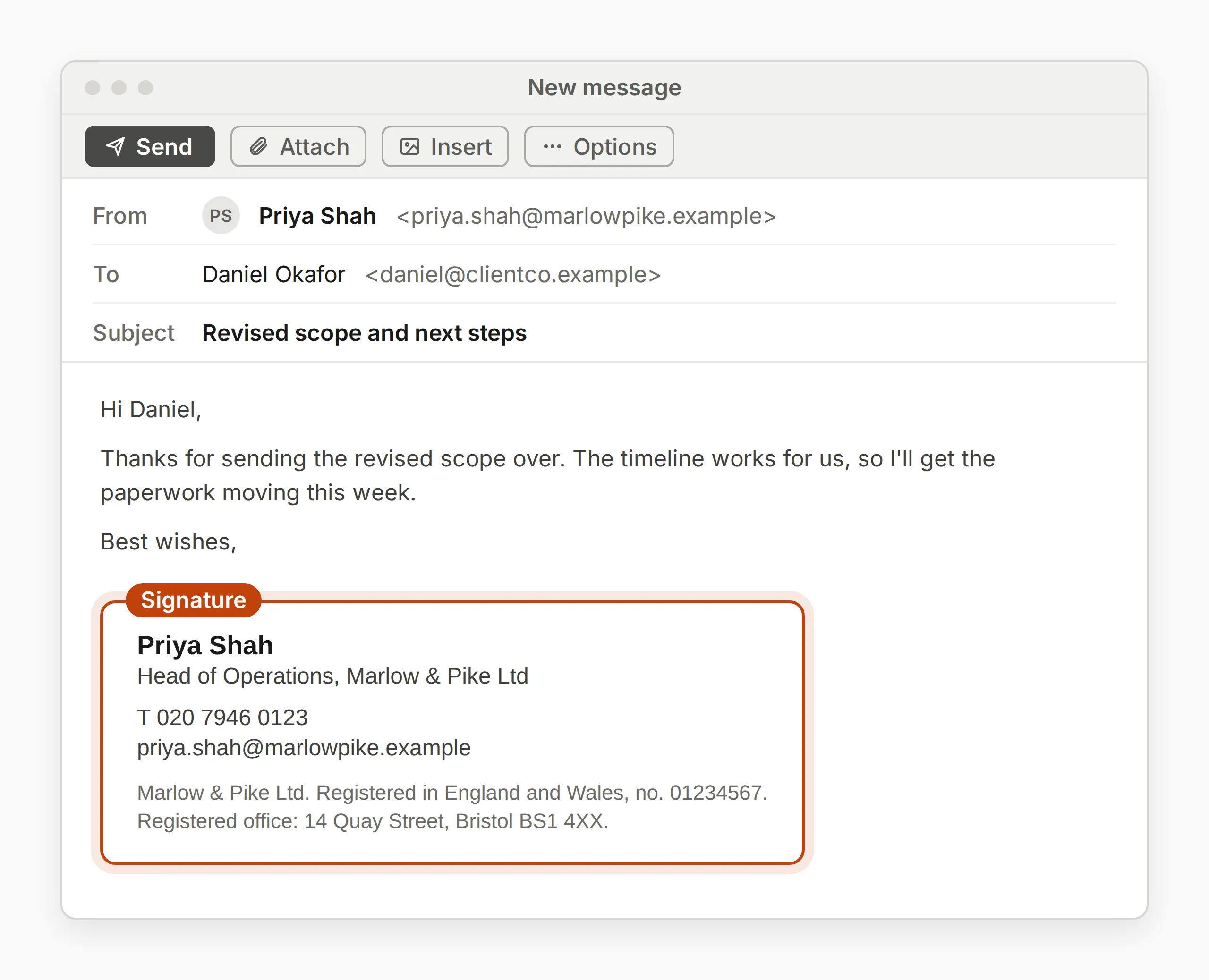
This works because there’s almost nothing to break. It renders identically everywhere, loads instantly, and reads as deliberate rather than sparse. It’s the right default for senior leadership, legal, finance, and any context where the signature needs to look authoritative rather than promotional — and it’s a useful fallback design for any organisation not ready to commit to a banner programme.
2. The banner-led conversion signature
Name and title block at the top, kept genuinely minimal, followed by a single rectangular banner with one message and one call to action — a meeting booking link, a webinar registration, a case study. Nothing else competes for attention.
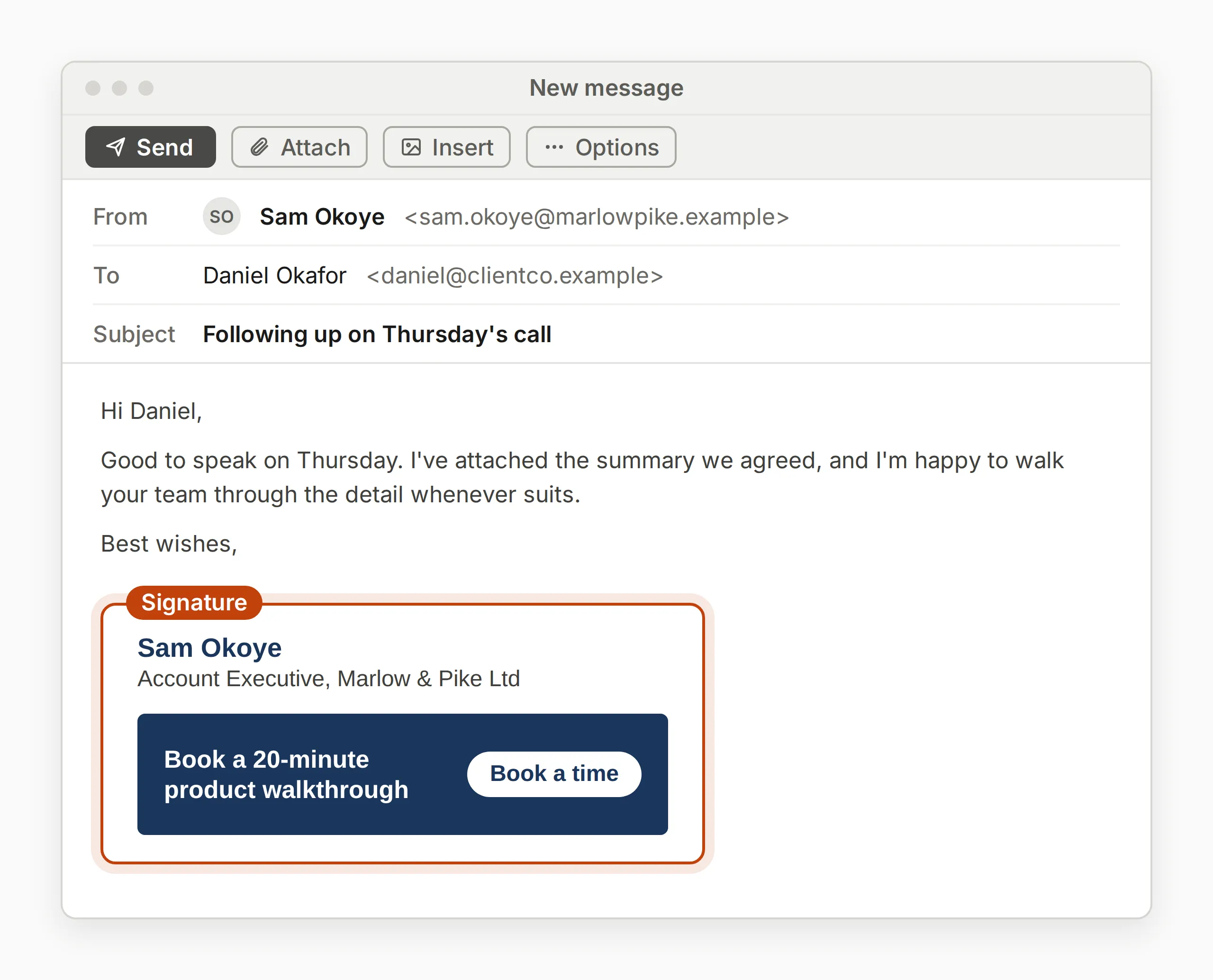
This is the right pattern for sales and revenue teams, where the signature is doing real commercial work on every outbound email (see How to Turn Every Sales Email Into a Conversion Touchpoint for the fuller case). The design discipline that makes it work is restraint: one banner, one CTA, one UTM-tracked link. Signatures that try to combine a campaign banner, a social row, and a secondary CTA in the same space usually end up with none of them performing, because there’s no single thing for the eye to land on.
3. The photo-and-context signature
A small, professionally shot headshot alongside the name and title block, sized consistently across the team (not whatever crop each person happened to have saved). Used well, it adds a layer of human trust that a text-only signature can’t — particularly useful for recruiters, account managers, and anyone whose job involves a first impression by email before a face-to-face meeting.
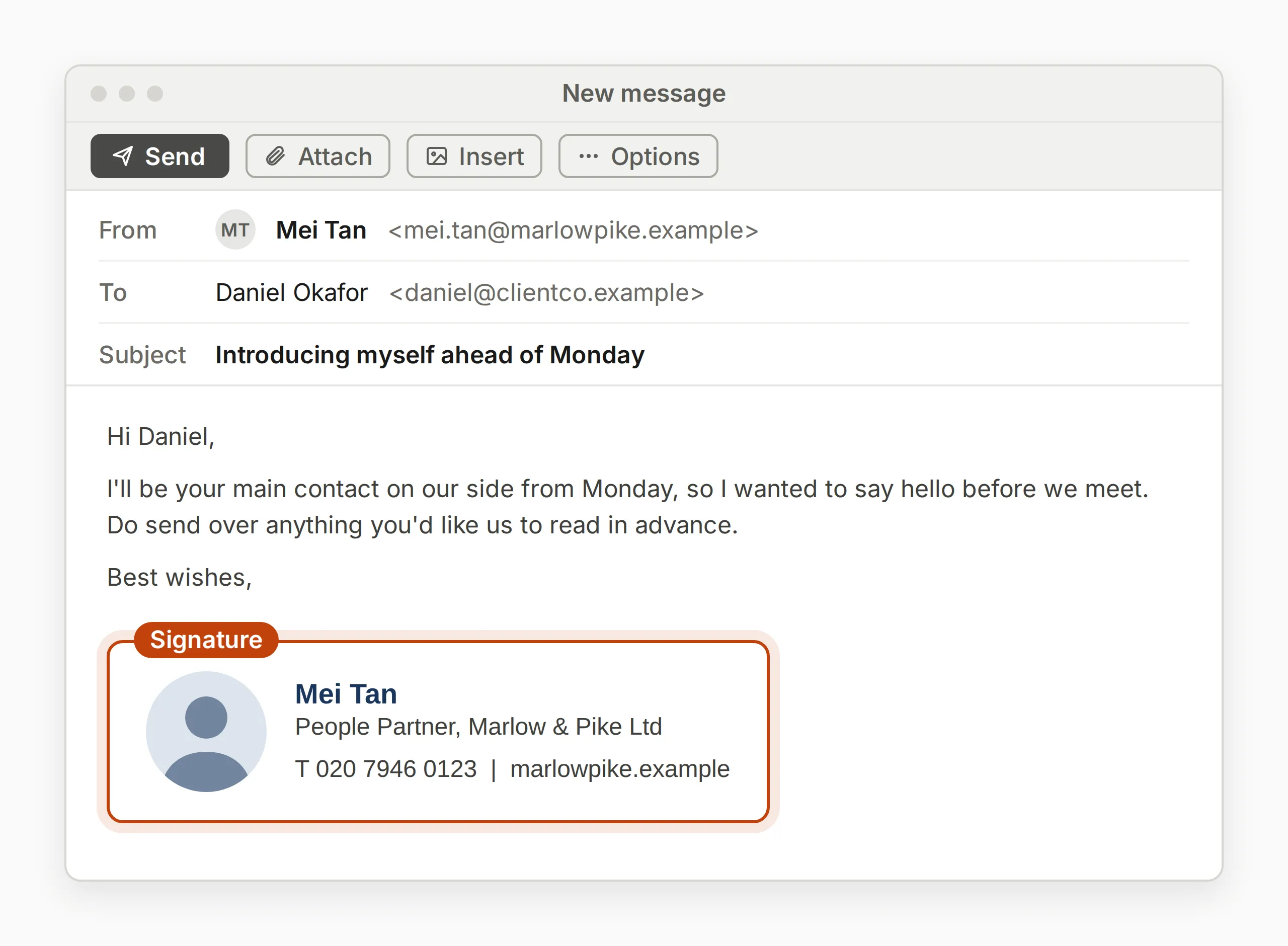
The failure mode here is inconsistency: one polished studio headshot next to three blurry phone selfies looks worse than no photos at all. If you’re going to use this archetype, it needs a one-time photography pass and a fixed crop and size applied to everyone — which in practice means it needs to be templated and centrally managed rather than left to each person to add their own.
4. The directory-driven, role-based signature
Rather than one signature for the whole company, this archetype defines two to five variants — by team, region, or role — and assigns them automatically based on directory attributes (department, office location, job title) pulled from Microsoft Entra ID. A new joiner in sales gets the booking-link variant from day one. A new joiner in HR gets a variant with no campaign banner at all. No one chooses their own variant or sets anything up manually.
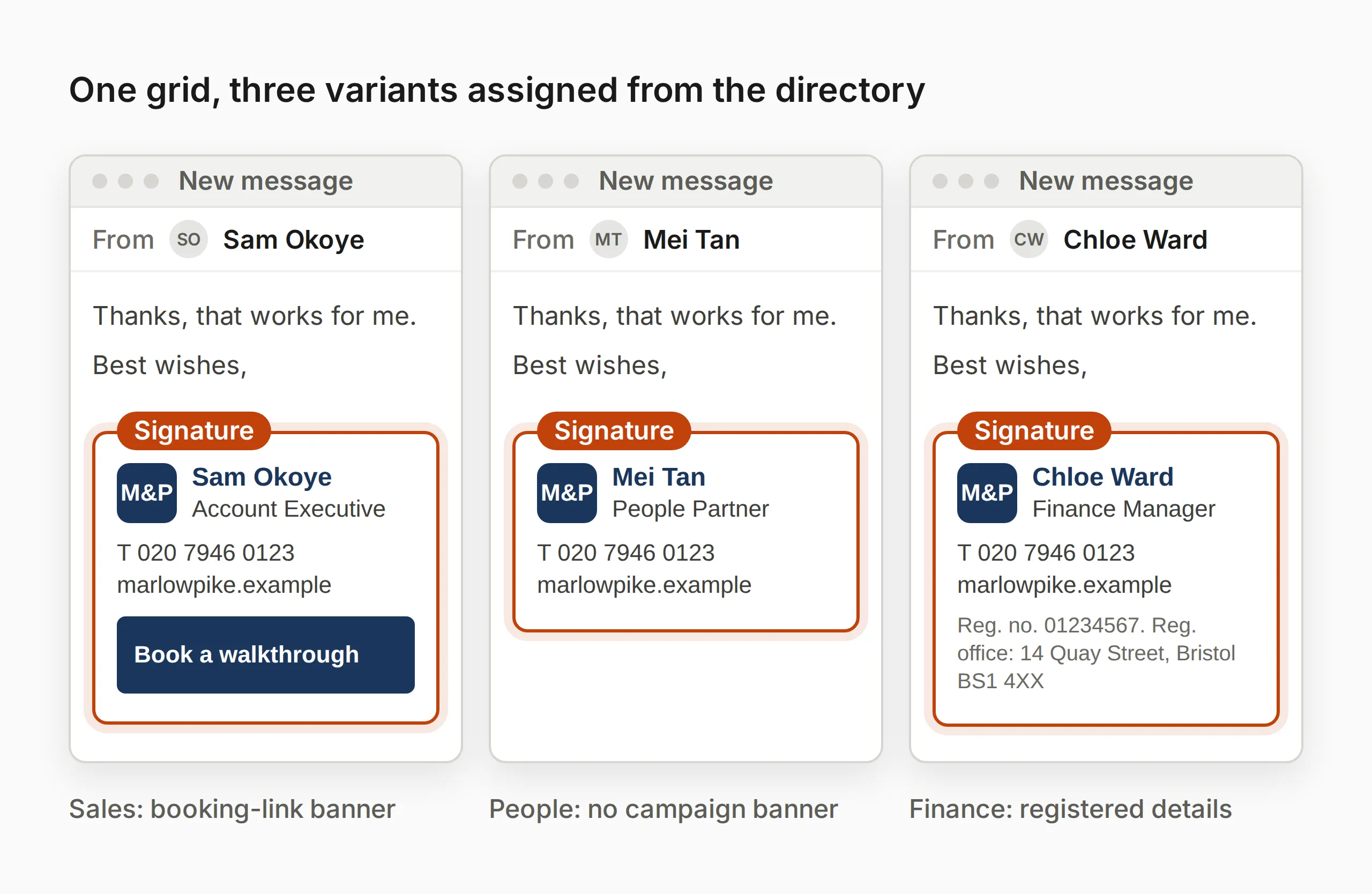
This is less a single visual style than an operating model, and it’s the one most large organisations eventually need — see Email Signatures for HR Teams for a concrete example of how role-based variants get used for onboarding and internal communications, not just sales. The design constraint is that every variant has to share the same underlying grid and brand elements, so they read as a family rather than as unrelated signatures that happen to share a logo.
5. The dark-mode-safe signature
A signature built and tested against both light and dark display modes — transparent PNG logos rather than logos with a hardcoded white background, text colours that aren’t pure black (which can invert oddly in some dark-mode implementations), and no decorative background blocks that assume a light canvas.
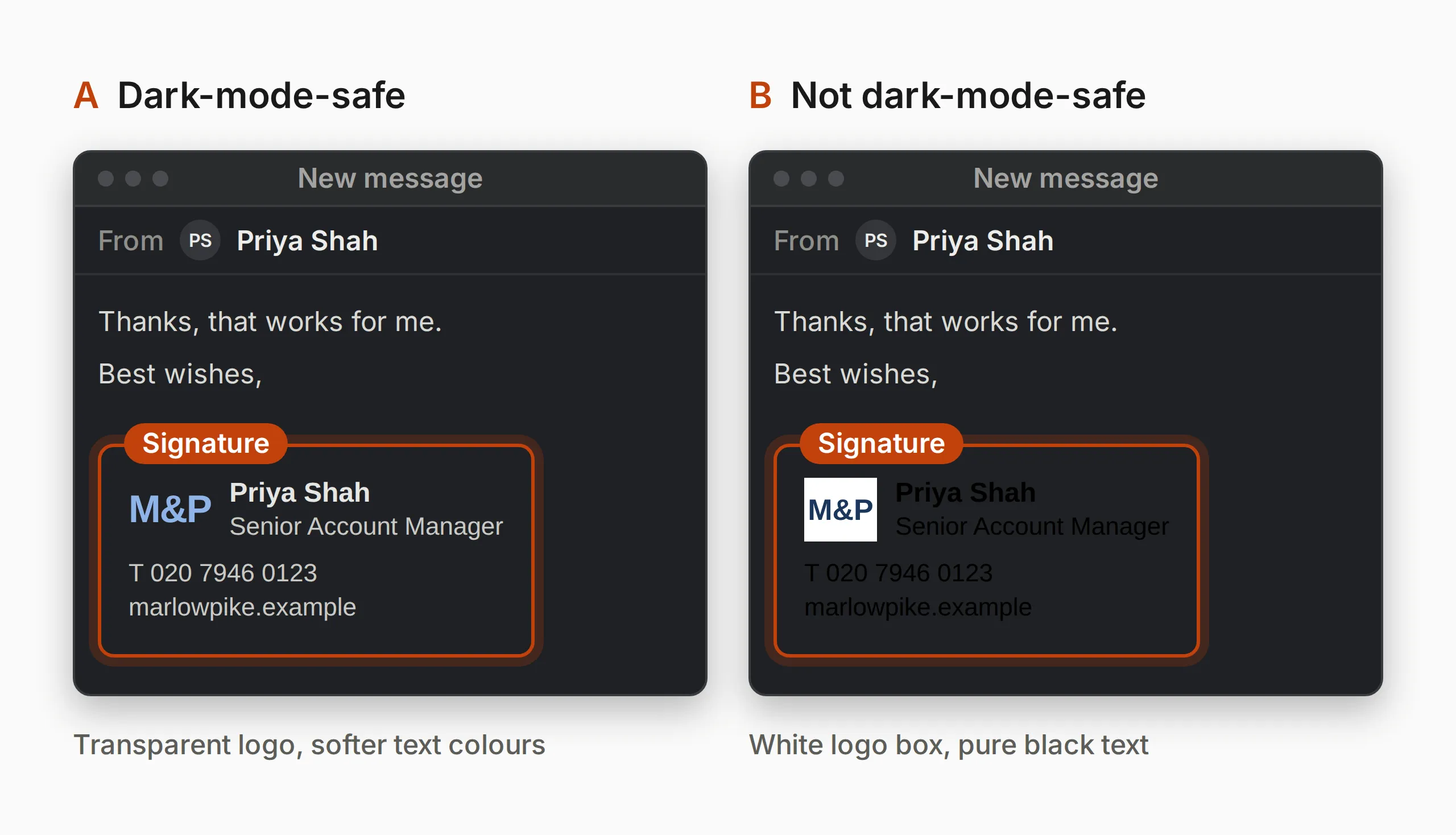
Dark mode email rendering varies by client and is one of the more inconsistent areas of HTML email even now, but the failure is visible and embarrassing when it happens: a logo with an invisible white background effectively vanishes, and pale grey text on a dark background can become unreadable. Testing your signature with the recipient’s client set to dark mode takes minutes and catches a problem that’s otherwise easy to miss, because the person designing the signature is usually looking at it in light mode.
| Archetype | Best for | Primary risk if done badly |
|---|---|---|
| Minimal executive | Leadership, legal, finance | Looking under-invested if used company-wide |
| Banner-led conversion | Sales, RevOps, marketing | Multiple competing CTAs diluting the one that matters |
| Photo-and-context | Recruiters, client-facing roles | Inconsistent photo quality and cropping across the team |
| Directory-driven role-based | Any organisation past ~20 people | Variants drifting apart visually over time without central control |
| Dark-mode-safe | Any signature with a logo or coloured background | Logos or text becoming invisible in dark mode |
The mistakes that sink otherwise good designs
A handful of specific errors show up repeatedly in signatures that started with a reasonable design:
Too many links. A signature with a logo link, a banner link, four social icons, and a website link in the text block gives the recipient no clue which one matters. Keep total links to a handful at most, with one clear primary action — the same restraint that makes the banner-led archetype above work.
Embedded images instead of hosted ones. An image attached to or embedded in the signature rather than referenced by a stable hosted URL inflates the email’s size, is more likely to be flagged by spam filters, and can fail to display depending on the client. Host every image and reference it by URL.
No explicit width and height on images. Without these set in the HTML, some clients reserve no space for the image while it loads, causing the layout to jump or collapse around it. This is a one-line fix that gets skipped constantly.
Full-width or gradient background colours. These render unpredictably in classic Outlook and unpredictably again in dark mode — two separate ways for the same design choice to fail. A contained, fixed-width coloured block is far more reliable than anything spanning the full email width.
Text baked into an image. A signature quote or tagline saved as a JPEG rather than written as real text can’t be read by a screen reader, can’t be selected or copied, breaks completely if images are blocked by default (a common corporate setting), and won’t restyle correctly in dark mode. If it’s words, it should be HTML text.
Testing before you roll anything out company-wide
None of the above is visible in a design tool. It only shows up once the signature is actually opened in a mail client — which means the testing step isn’t optional, however confident the design looks on screen.
At minimum, test the final HTML in classic Outlook for Windows, the new Outlook, Outlook on Mac, the Outlook mobile app, and a major webmail client like Gmail, with dark mode toggled on for at least one pass. Client rendering differences are well documented — Litmus tracks current email client market share and publishes ongoing rendering research, which is a reasonable way to prioritise which clients are worth testing first if you can’t cover all of them. If you’re deploying via an Outlook add-in built on the modern Office Add-ins platform rather than the legacy COM model, the same signature works in both classic and new Outlook — one less rendering path to test separately.
Frequently asked questions
What makes an email signature “well designed” beyond looking nice?
It renders correctly and consistently across every client your organisation’s recipients actually use — including classic Outlook, the new Outlook, mobile clients, and dark mode — not just in the design tool it was created in. A signature that looks striking in a mockup but collapses in Outlook isn’t well designed; it’s untested.
Should every employee’s signature look identical?
Not necessarily. Organisations with distinct teams or regions often run two to five centrally managed variants — see the directory-driven archetype above — rather than one identical signature for everyone. What matters is that each variant is deliberately designed and centrally controlled, not that every employee sees the same thing.
Are GIFs, QR codes, or other interactive elements a good idea in a signature?
Use them carefully. QR codes can work well for a single, specific action (a digital business card or an event registration) but add little value if the destination is just your homepage, and they’re invisible if a recipient’s client blocks images by default. Animated GIFs face the same image-blocking risk and add file weight for marginal benefit in a signature context. Both are worth testing thoroughly before rolling out, rather than assuming they’ll render the way they did in your test inbox.
How many links should a signature actually have?
As few as the message needs — in practice, that’s rarely more than three or four: perhaps a website link, one or two social profiles, and a single banner CTA. Every additional link dilutes the others, since the recipient has no way to know which one you actually want them to click.
Do I need design software to build a signature like these, or can it be done directly in HTML?
All five archetypes above are achievable with table-based HTML and inline CSS — the same constraints covered in Email Signature Branding — without needing a dedicated design tool. The harder part in practice isn’t the initial build; it’s keeping every employee’s signature consistent with that design over time, which is what centralised management solves.